2.2. Containerized Land DA Workflow
These instructions will help users run a basic case for the Unified Forecast System (UFS) Land Data Assimilation (DA) System using a Singularity/Apptainer container. The Land DA container packages together the Land DA System with its dependencies (e.g., spack-stack, JEDI), prebuilt Land-DA binaries, and provides a uniform environment in which to run the Land DA System. Normally, the details of running Earth system models will vary based on the computing platform because there are many possible combinations of operating systems, compilers, MPIs, and package versions available. Installation via Singularity/Apptainer container reduces this variability and allows for a smoother experience running Land DA. This approach is recommended for users not running Land DA on a supported Level 1 system (e.g., Ursa, Hercules).
This chapter provides instructions for running the Unified Forecast System (UFS) Land DA System in a container using a Jan. 19-20, 2025 00z sample case. This case is a LND warmstart configuration that uses ERA5 atmospheric forcing data, IMS snow depth observation data, and the 3D-Var DA algorithm.
This case corresponds to the January 2025 Gulf Coast Blizzard, which brought unprecedented snowfall to the entire Gulf Coast. Leading up to the event, the polar vortex stretched far south and met with unusually warm Gulf waters. In response, the National Weather Service (NWS) issued a series of winter storm warnings, extreme cold warnings, and even blizzard warnings — the first ever in some areas. New Orleans, LA received a record 8 inches of snow, and the surrounding coastal areas likewise saw record-breaking snowfall and cold temperatures.
Attention
This chapter of the User’s Guide should only be used for container builds. For non-container builds, see Chapter 2.1, which describes the steps for building and running Land DA on a Level 1 System without a container.
2.2.1. Prerequisites
The containerized version of Land DA requires:
Installation of Apptainer (or its predecessor, Singularity)
At least 26 CPU cores (may be possible to run with 13, but this has not been tested)
The Slurm job scheduler
Note
As of November 2021, the Linux-supported version of Singularity has been renamed to Apptainer. Apptainer has maintained compatibility with Singularity, so singularity commands should work with either Singularity or Apptainer (see compatibility details here.)
2.2.2. Create a Working Directory
Users can either create a new directory for their Land DA work (e.g., landda) or choose an existing directory, depending on preference. Then, users should navigate to this directory. For example, to create a new directory and navigate to it, run:
mkdir /path/to/landda
cd /path/to/landda
where /path/to/landda is the path to the directory where the user plans to run Land DA experiments (e.g., /Users/Joe.Schmoe/landda). In experiment configuration files and scripts, this directory is referred to as ${exp_basedir}.
Optionally, users can save this directory path in an environment variable (e.g., ${BASEDIR}) to avoid typing out full path names later.
export BASEDIR=`pwd`
In this documentation, ${BASEDIR} is used, but users are welcome to choose another name for this variable if they prefer.
2.2.3. Get Data
In order to run the Land DA System, users will need input data in the form of fix files, model forcing files, restart files, and snow depth observations for data assimilation. These files are already present on Level 1 systems (see Section 2.1 for details).
Users on any system may download and untar the data from the Land DA Data Bucket into their ${BASEDIR} directory. In the working directory, run:
cd ${BASEDIR}
wget https://noaa-ufs-land-da-pds.s3.amazonaws.com/current_land_da_release_data/v3.0.0/LandDAInputDatav3.0.0.tar.gz
tar xvfz LandDAInputDatav3.0.0.tar.gz
2.2.4. Download or Build the Container
Users can download the ubuntu22.04-intel-landda-release-public-v3.0.0.img container from the Land DA Data Bucket or build the Singularity container from a public Docker container image. Downloading may be faster depending on the download speed on the user’s system.
2.2.4.1. Download the Container
To download from the data bucket, users can run:
wget https://noaa-ufs-land-da-pds.s3.amazonaws.com/current_land_da_release_data/v3.0.0/ubuntu22.04-intel-landda-release-public-v3.0.0.img
This will download a container image named ubuntu22.04-intel-landda-release-public-v3.0.0.img. Users may continue to set up the container.
2.2.4.2. Build the Container
Alternatively, users can build the container from a Docker image. (Users who have already downloaded the container may skip to the next section.) Users working on systems with limited disk space in their /home directory will need to set the SINGULARITY_CACHEDIR and SINGULARITY_TMPDIR environment variables to point to a location with adequate disk space. For example:
export SINGULARITY_CACHEDIR=/absolute/path/to/writable/directory/cache
export SINGULARITY_TMPDIR=/absolute/path/to/writable/directory/tmp
See detailed instructions for this in Section 2.2.7.1. Then, run:
singularity build --force ubuntu22.04-intel-landda-release-public-v3.0.0.img docker://noaaepic/ubuntu22.04-intel2024.2.0-1-devel-landda:ue192-v3.0.0
This process may take several hours depending on the system.
Note
Some users may need to issue the singularity build command with sudo (i.e., sudo singularity build...). Whether sudo is required is system-dependent. If sudo is required (or desired) for building the container, users should set the SINGULARITY_CACHEDIR and SINGULARITY_TMPDIR environment variables with sudo su, as in the NOAA Cloud example from Section 2.2.7.1 below.
2.2.5. Set Up the Container
Attention
It is recommended that users establish different working directories for LND and ATML experiments because these experiments use different executables. This makes it impossible to run LND and ATML experiment configurations simultaneously from the same working directory. Users can circumvent this issue by creating an lnd directory for LND experiments and an atml directory for ATML experiments. Then, perform the container setup instructions in each directory.
Create experiment variables that point to the container image ($img) and, if necessary, the location of the data ($LANDDA_INPUTS). Users only need to set the location of the data if they added it in a location other than ${BASEDIR}:
# Set path to container
export img=/path/to/ubuntu22.04-intel-landda-release-public-v3.0.0.img

# Set path to data (if necessary)
export LANDDA_INPUTS=/path/to/inputs
where /path/to is replaced by the absolute path to the location of the container and Land DA input data.
Within the ${BASEDIR} directory, copy the setup_container.sh script out of the container.
singularity exec -H $PWD $img cp -r /opt/land-DA_workflow/setup_container.sh .
The setup_container.sh script should now be in the ${BASEDIR} directory. Note that if previous steps included a sudo command, sudo may be required in front of this command for it to work. If for some reason, the previous command was unsuccessful, users may try a version of the following command instead:
singularity exec -B /<local_base_dir>:/<container_dir> $img cp -r /opt/land-DA_workflow/setup_container.sh .
where <local_base_dir> and <container_dir> are replaced with a top-level directory on the local system and in the container, respectively. Additional directories can be bound by adding another -B /<local_base_dir>:/<container_dir> argument before the container location ($img).
Note
Users may convert a container .img file to a writable sandbox. This step is optional on most systems but allows users to make changes to the container if desired:
singularity build --sandbox ubuntu22.04-intel-landda-release-public-v3.0.0 $img
Sometimes binding directories with different names can cause problems. In general, it is recommended that the local base directory and the container directory have the same name. For example, if the host system’s top-level directory is /user1234, the user may want to convert the .img file to a writable sandbox and create a user1234 directory in the sandbox to bind to.
Next, run the setup_container.sh script with the proper arguments.
./setup_container.sh -c=<compiler> -m=<mpi_implementation> -i=$img
where:
-cis the compiler on the user’s local machine ( e.g.,intel/2024.2.1,intel-oneapi-compilers/2024.1.0,intel-oneapi-compilers/2024.2.1)
-mis the MPI on the user’s local machine ( e.g.,impi/2024.2.1,intel-oneapi-mpi/2021.12.0,intel-oneapi-mpi/2021.13.1)
-iis the full path to the container image ( e.g.,${BASEDIR}/ubuntu22.04-intel-landda-release-public-v3.0.0.img)
Concretely, users would run something like:
./setup_container.sh -c=intel/2024.2.1 -m=impi/2024.2.1 -i=$img
Running this script will print the following messages to the console:
Copying out land-DA_workflow from container
/usr/bin/cp: cannot open '/opt/land-DA_workflow/sorc/conda/pkgs/pyshp-3.0.3-pyhd8ed1ab_0/info/test/build_env_setup.sh' for reading: Permission denied
/usr/bin/cp: cannot open '/opt/land-DA_workflow/sorc/conda/pkgs/pyshp-3.0.3-pyhd8ed1ab_0/info/test/conda_build.sh' for reading: Permission denied
Checking if LANDDA_INPUTS variable exists and linking to land-DA_workflow
Land DA data exists, creating links
Updating scripts files
Updating singularity modulefiles
Updating run related scripts
Setup conda
Getting the jedi test data from container
Creating links for exe
Done
The user should now see the land-DA_workflow and jedi-bundle directories in the ${BASEDIR} directory.
Containers come with pre-built executables, so users may continue to the next section to configure the experiment.
2.2.5.1. Configure the Experiment
To configure an experiment, first load the workflow modulefiles for the container:
cd land-DA_workflow
module use modulefiles
module load wflow_singularity
Then navigate to the parm directory and copy the desired case (e.g., config.LND.era5.3dvar.ims.DA-fcst.warmstart.yaml) into config.yaml:
cd parm
cp config_samples/config.<case>.yaml config.yaml
where <case> is the name of one of the sample case files in the config_samples directory.
For example, when running the LND.era5.3dvar.ims.DA-fcst.warmstart case, run:
cd parm
cp config_samples/config.LND.era5.3dvar.ims.DA-fcst.warmstart.yaml config.yaml
Users may configure elements of the experiment in config.yaml if desired. For example, users may wish to alter DATE_FIRST_CYCLE, DATE_LAST_CYCLE, and/or DATE_CYCLE_FREQ_HR to indicate a different start cycle, end cycle, and increment. Users may also wish to change the DA algorithm from 3dvar to letkf via the JEDI_ALGORITHM variable. Users who wish to run a more complex experiment may change the values in config.yaml using information from Sections 3.1: Workflow Configuration Parameters, 3.2: I/O for the Land DA System, and 3.3: JEDI DA System.
Attention
When regenerating an experiment from the same or similar config.yaml file, if the EXP_CASE_NAME remains the same, the old experiment directory with that name will be renamed with the *_old suffix, and the new experiment directory will use EXP_CASE_NAME. However, the envir directory will NOT be regenerated unless the envir parameter is given a new name. If it keeps the same name, the previous ptmp/<envir> directory and everything in it will remain (rather than being renamed), and the experiment will continue from where it left off using the files from the previous directory. This can be helpful in certain cases but detrimental in others, so users need to make a conscious choice based on their use case.
Generate the experiment directory by running:
./setup_wflow_env.py -p=singularity
If the command runs without issue, this script will print override messages, experiment details, and “Schema validation succeeded for Rocoto config/XML” messages to the console, similar to the following excerpts:
ubuntu@ip-10-29-93-226:~/land-DA_workflow/parm$ ./setup_wflow_env.py -p=singularity
 Python Log Level= str: INFO, attr: 20
INFO::/contrib/${USER}/landda/land-DA_workflow/parm/./setup_wflow_env.py::L34:: Current directory (PARMdir): /contrib/Gillian.Petro/landda/land-DA_workflow/parm
INFO::/contrib/${USER}/landda/land-DA_workflow/parm/./setup_wflow_env.py::L36:: Home directory (HOMEdir): /contrib/Gillian.Petro/landda/land-DA_workflow
INFO::/contrib/${USER}/landda/land-DA_workflow/parm/./setup_wflow_env.py::L38:: Experimental base directory (exp_basedir): /contrib/Gillian.Petro/landda
INFO::/contrib/${USER}/landda/land-DA_workflow/parm/./setup_wflow_env.py::L168:: Experimental case directory /contrib/Gillian.Petro/landda/exp_case/lnd_era5_warmstart_00 has been created.
INFO::/contrib/${USER}/landda/land-DA_workflow/parm/./setup_wflow_env.py::L175:: Rocoto YAML template: /contrib/Gillian.Petro/landda/land-DA_workflow/parm/templates/template.land_analysis.yaml
**************************************************
Overriding              ACCOUNT = epic
Overriding                  APP = LND
Overriding           ATMOS_FORC = era5
...
Overriding        queue_default = batch
Overriding               res_p1 = 97
**************************************************
        DATE_FIRST_CYCLE: 2025011900
         nprocs_forecast: 26
      LND_INITIAL_ALBEDO: 0.25
            WRITE_GROUPS: 1
               JEDI_PATH: /contrib/${USER}/landda
       MED_COUPLING_MODE: ufs.nfrac.aoflux
        COUPLER_CALENDAR: 2
               WE2E_TEST: NO
         nnodes_forecast: 1
              CCPP_SUITE: FV3_GFS_v17_p8_ugwpv1
                 MACHINE: singularity
            OBS_IMS_SNOW: YES
...
         NPROCS_ANALYSIS: 6
                   FHROT: 0
                   envir: test_lnd_era5_warm
   WRITE_TASKS_PER_GROUP: 6
               OUTPUT_FH: 1 -1
               COMINgdas:
               COLDSTART: NO
INFO::/contrib/${USER}/landda/land-DA_workflow/sorc/conda/envs/land_da/lib/python3.12/site-packages/uwtools/config/validator.py::L81::Schema validation succeeded for Rocoto config
INFO::/contrib/${USER}/landda/land-DA_workflow/sorc/conda/envs/land_da/lib/python3.12/site-packages/uwtools/rocoto.py::L81::Schema validation succeeded for Rocoto XML
2.2.6. Run the Experiment
To run the experiment, users may submit tasks manually via rocotorun or use the automate_launch_script.py script to automate the task submission.
2.2.6.1. Workflow Overview
Each Land DA experiment includes multiple tasks that must be run in order to satisfy the dependencies of later tasks. These tasks are housed in the J-job scripts contained in the jobs directory.
J-job Task |
Description |
Application |
Executables |
|---|---|---|---|
PREP_DATA |
Retrieves or creates the observation data files or the DATM forcing data files |
LND/ATML |
|
FCST_IC |
Generates initial conditions (IC) files for the ATML coldstart configuration only |
ATML (coldstart) |
chgres_cube from UFS_UTILS |
JCB |
Generates JEDI configuration YAML file |
LND/ATML |
|
PRE_ANAL |
Transfers the snow depth or soil moisture data from the restart files to the surface data files |
LND |
tile2tile_converter.exe |
ANALYSIS |
Runs JEDI and adds the increment to the surface data files |
LND/ATML |
fv3jedi_letkf.x / fv3jedi_var.x & apply_incr.exe |
POST_ANAL |
Transfers the JEDI snow depth or soil moisture result from the surface data files to the restart files |
LND/ATML |
tile2tile_converter.exe |
FORECAST |
Runs the forecast model |
LND/ATML |
ufs_model |
PLOT_STATS |
Plots the results of the ANALYSIS and FORECAST tasks |
LND/ATML |
2.2.6.2. Automated Run
To automate task submission using automate_launch_script.py, simply run the script:
./automate_launch_script.py
The console will output progress messages every 10 seconds by default:
Running ./launch_rocoto_wflow.sh ...
 Cycles: 0 out of 2 completed.
 Detected wflow_status = IN PROGRESS
 Waiting 10 seconds before next run ...

...

Running ./launch_rocoto_wflow.sh ...
 Cycles: 1 out of 2 completed.
 Detected wflow_status = IN PROGRESS
 Waiting 10 seconds before next run ...

Running ./launch_rocoto_wflow.sh ...
 Cycles: 2 out of 2 completed.
 Detected wflow_status = SUCCESS

 !!! ===== Workflow completed successfully. Stopping ===== !!!
Users can change how often the script relaunches by adding the -i argument. For example, to run the workflow launch script every 15 seconds, users would run:
./automate_launch_script.py -i=15
To check the status of the experiment, see Section 2.1.5.4 on tracking experiment progress.
2.2.6.3. Manual Submission
Depending on the user’s platform, it may be necessary to load Rocoto:
module load rocoto/1.3.7
To run the experiment manually, issue a rocotorun command from the experiment directory:
cd ../../exp_case/<EXP_CASE_NAME>
rocotorun -w land_analysis.xml -d land_analysis.db
where <EXP_CASE_NAME> is replaced with the actual name of the experiment directory (e.g., lnd_era5_warmstart_00/).
Users will need to issue the rocotorun command multiple times. The tasks must be run in order, and rocotorun initiates the next task once its dependencies have completed successfully.
See the Workflow Overview section to learn more about the steps in the workflow process.
2.2.6.4. Track Progress
To check on the job status, users on a system with a Slurm job scheduler may run:
squeue -u $USER
To view the experiment status, run:
rocotostat -w land_analysis.xml -d land_analysis.db
If rocotorun was successful, the rocotostat command will print a status report to the console. For example:
       CYCLE         TASK                       JOBID         STATE  EXIT STATUS   TRIES   DURATION
======================================================================================================
202501190000          jcb                    11531200     SUCCEEDED            0       1       11.0
202501190000    prep_data                    11531199     SUCCEEDED            0       1       25.0
202501190000     pre_anal                    11531202     SUCCEEDED            0       1        5.0
202501190000     analysis   druby://10.184.3.61:45183    SUBMITTING            -       0        0.0
202501190000    post_anal                           -             -            -       -          -
202501190000     forecast                           -             -            -       -          -
202501190000   plot_stats                           -             -            -       -          -
======================================================================================================
202501200000          jcb                    11531201     SUCCEEDED            0       1       11.0
202501200000    prep_data                           -             -            -       -          -
202501200000     pre_anal                           -             -            -       -          -
202501200000     analysis                           -             -            -       -          -
202501200000    post_anal                           -             -            -       -          -
202501200000     forecast                           -             -            -       -          -
202501200000   plot_stats                           -             -            -       -          -
Note that the status table printed by rocotostat only updates after each rocotorun command (whether issued manually or via cron/launch script automation). For each task, a log file is generated. These files are stored in ${BASEDIR}/ptmp/<envir>/com/output/logs.
The experiment has successfully completed when all tasks say SUCCEEDED under STATE. Other potential statuses are: QUEUED, SUBMITTING, RUNNING, and DEAD. Users may view the log files to determine why a task may have failed.
2.2.6.5. Check Experiment Output
As the experiment progresses, it will generate a number of directories to hold intermediate and output files. The structure of those files and directories appears below:
${BASEDIR} (<exp_basedir>): Base directory
 ├── land-DA_workflow (<HOMElandda>): Home directory of the land DA workflow
 │     ├── jobs
 │     ├── modulefiles
 │     ├── parm
 │     ├── scripts
 │     ├── sorc
 │     └── ush
 ├── exp_case
 │     └── $EXP_CASE_NAME
 │           ├── com_dir --> symlinked to ptmp/<envir>/com/landda/v3.0.0
 │           ├── land_analysis.yaml
 │           ├── land_analysis.xml
 │           ├── launch_rocoto_wflow.sh
 │           ├── log_dir --> symlinked to ptmp/<envir>/com/output/logs
 │           └── tmp_dir --> symlinked to ptmp/<envir>/com/tmp
 └── ptmp (<PTMP>)
       └── [lnd/atml]_* (<envir>)
             └── com (<COMROOT>)
             │     ├── landda (<NET>)
             │     │     └── vX.Y.Z (<model_ver>)
             │     │           └── landda.YYYYMMDD (<RUN>.<PDY>): Directory containing the output files
             │     │                 ├── datm
             │     │                 ├── hofx
             │     │                 ├── obs
             │     │                 └── plot
             │     └── output
             │           └── logs (<LOGDIR>): Directory containing the log files for the Rocoto workflow
             └── tmp (<DATAROOT>)
                  ├── [task_name].${PDY}${cyc}.<jobid> (<DATA>): Working directory for a specific task and cycle
                  └── DATA_SHARE
                        ├── INPUT_DATM
                        ├── hofx: Directory containing the soft links to the results of the analysis task for plotting
                        ├── hofx_omb
                        └── RESTART: Directory containing the soft links to the restart files for the next cycles
Each variable in parentheses and angle brackets (e.g., (<VAR>)) is the name for the directory defined in the file land_analysis.yaml (derived from template.land_analysis.yaml or config.yaml) or in the NCO Implementation Standards. In the future, this directory structure will be further modified to meet the NCO Implementation Standards.
Check for the output files for each cycle in the experiment directory:
ls -l ${BASEDIR}/ptmp/<envir>/com/landda/<model_ver>/landda.YYYYMMDD
where YYYYMMDD is the cycle date, and <model_ver> is the model version (currently v3.0.0 in the develop branch). The experiment should generate several restart files.
2.2.6.5.1. Plotting Results
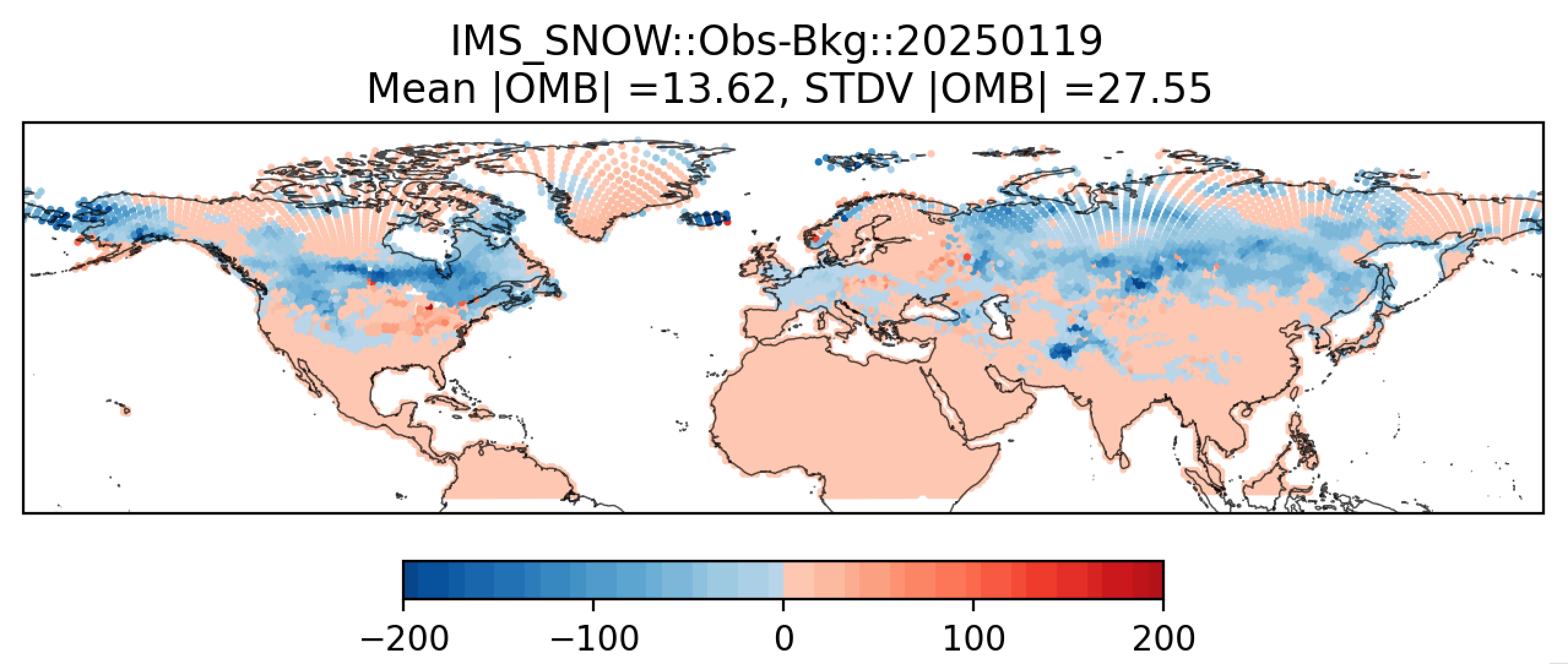
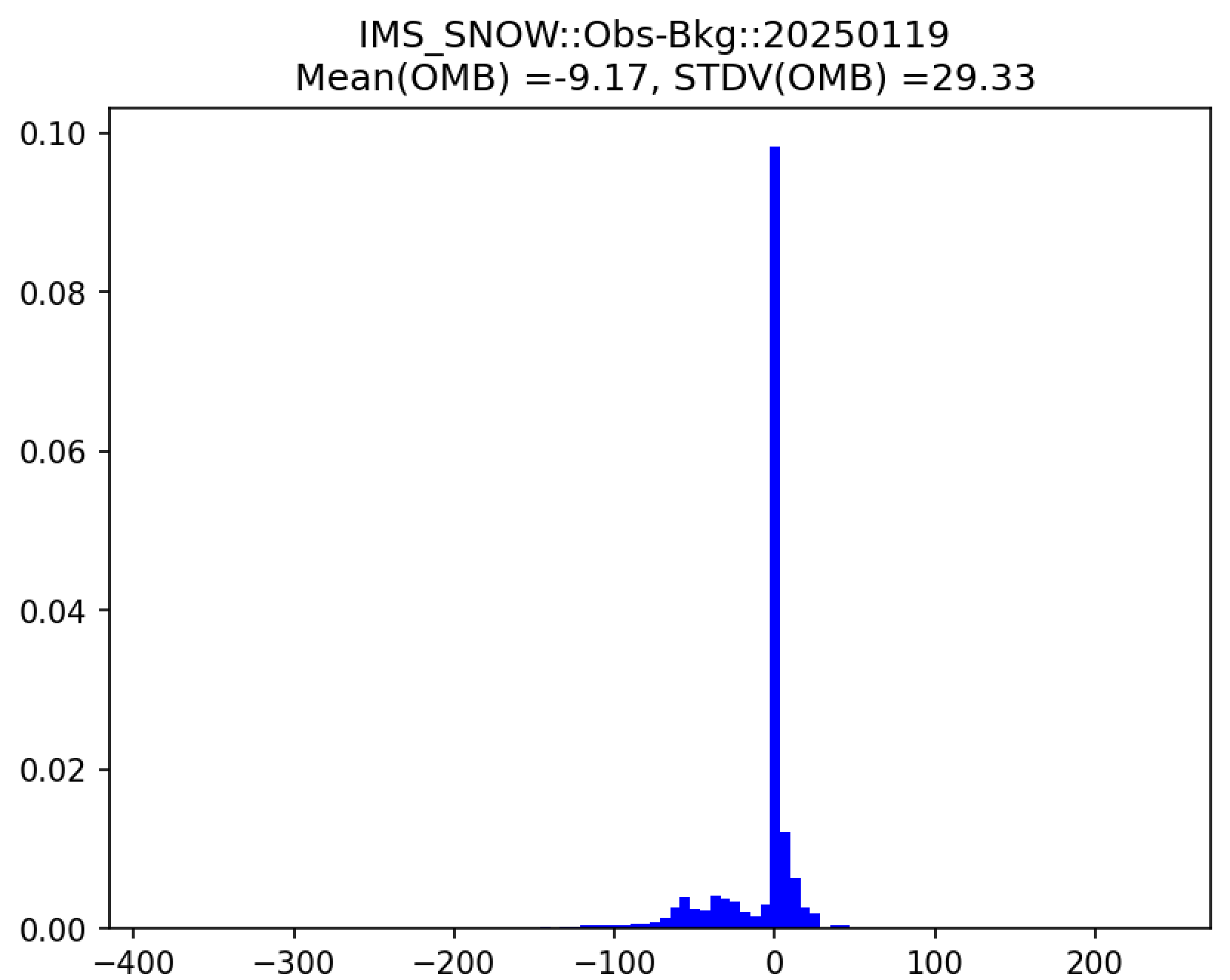
Additionally, in the plot subdirectory, users will find a variety of plots for each cycle, including scatter plots (hofx_omb_<obs_type>_YYYYMMDD_scatter.png) and histograms (hofx_omb_<obs_type>_YYYYMMDD_histogram.png).
The scatter plot is named OBS-BKG (i.e., Observation Minus Background [OMB]), and it depicts a map of snow depth results. Blue points indicate locations where the observed values are less than the background values, and red points indicate locations where the observed values are greater than the background values. The title lists the mean and standard deviation of the absolute value of the OMB values.
The histogram plots OMB values on the x-axis and frequency density values on the y-axis. The title of the histogram lists the mean and standard deviation of the real value of the OMB values.
|
|
Note
There are many options for viewing plots, and instructions for this are highly machine dependent. Users should view the data transfer documentation for their system to secure-copy files from a remote system (such as RDHPCS) to their local system.
Another option is to download Xming (for Windows) or XQuartz (for Mac), use the -X option when connecting to a remote system via SSH, and run:
module load imagemagick
display file_name.png
where file_name.png is the name of the file to display/view. Depending on the system, users may need to install imagemagick and/or adjust other settings (e.g., for X11 forwarding). Users should contact their machine administrator with any questions.
2.2.7. Appendix
2.2.7.1. Working in the Cloud or on HPC Systems
Users working on systems with limited disk space in their /home directory may need to set the SINGULARITY_CACHEDIR and SINGULARITY_TMPDIR environment variables to point to a location with adequate disk space. For example:
export SINGULARITY_CACHEDIR=/absolute/path/to/writable/directory/cache
export SINGULARITY_TMPDIR=/absolute/path/to/writable/directory/tmp
where /absolute/path/to/writable/directory/ refers to the absolute path to a writable directory with sufficient disk space. If the cache and tmp directories do not exist already, they must be created with a mkdir command.
On NOAA Cloud systems, the sudo su/exit commands may also be required; users on other systems may be able to omit these. For example:
mkdir /lustre/cache
mkdir /lustre/tmp
sudo su
export SINGULARITY_CACHEDIR=/lustre/cache
export SINGULARITY_TMPDIR=/lustre/tmp
exit
Note
/lustre is a fast but non-persistent file system used on NOAA Cloud systems. To retain work completed in this directory, tar the files and move them to the /contrib directory, which is much slower but persistent.
After setting the SINGULARITY_CACHEDIR and SINGULARITY_TMPDIR environment variables, users may continue to build the container.